

lazydir: A Terminal UI for Browsing Agent Directory
The tooling around Agent Directory has evolved through several layers.
The dirctl CLI provides full programmatic control, and the
Directory MCP server enables natural-language
interaction with directory nodes from within AI-powered IDEs.
These tools serve their respective workflows well, but neither is optimized for the common task of simply exploring what
a directory node contains — browsing records, narrowing results through filters, and inspecting individual entries.
lazydir addresses this gap. It is a keyboard-driven terminal user interface (TUI) for Agent Directory, inspired by lazygit and lazydocker. This post describes the motivation behind lazydir, the capabilities included in the first release, how to install and configure it, and the direction of upcoming development.
The Problem: Browsing a Directory Node Is a Multi-Step Process
Discovering the contents of a directory node through dirctl requires constructing search queries, interpreting JSON
output, and often piping results through jq to extract the relevant fields.
Finding agents with a specific skill requires knowing the exact taxonomy name.
Comparing records across different filter criteria involves running multiple commands and cross-referencing the results
manually.
The MCP server improves this workflow considerably. A developer can describe what they are looking for in natural language, and the AI assistant translates that into the appropriate tool calls. This approach works well for exploratory tasks and for workflows that combine discovery with other IDE activities. However, each query still requires a round-trip through the assistant, and the interaction model is conversational rather than navigational.
What was missing was a way to directly observe a directory node’s contents — to switch between filter categories, scan
through matching records, and inspect their details in a continuous flow.
The same pattern that lazygit provides for navigating a git repository without repeatedly typing git log, git diff,
and git show.
lazydir v0.0.1
lazydir presents the contents of a directory node in four navigable panels: connections, filters, records, and a live preview.
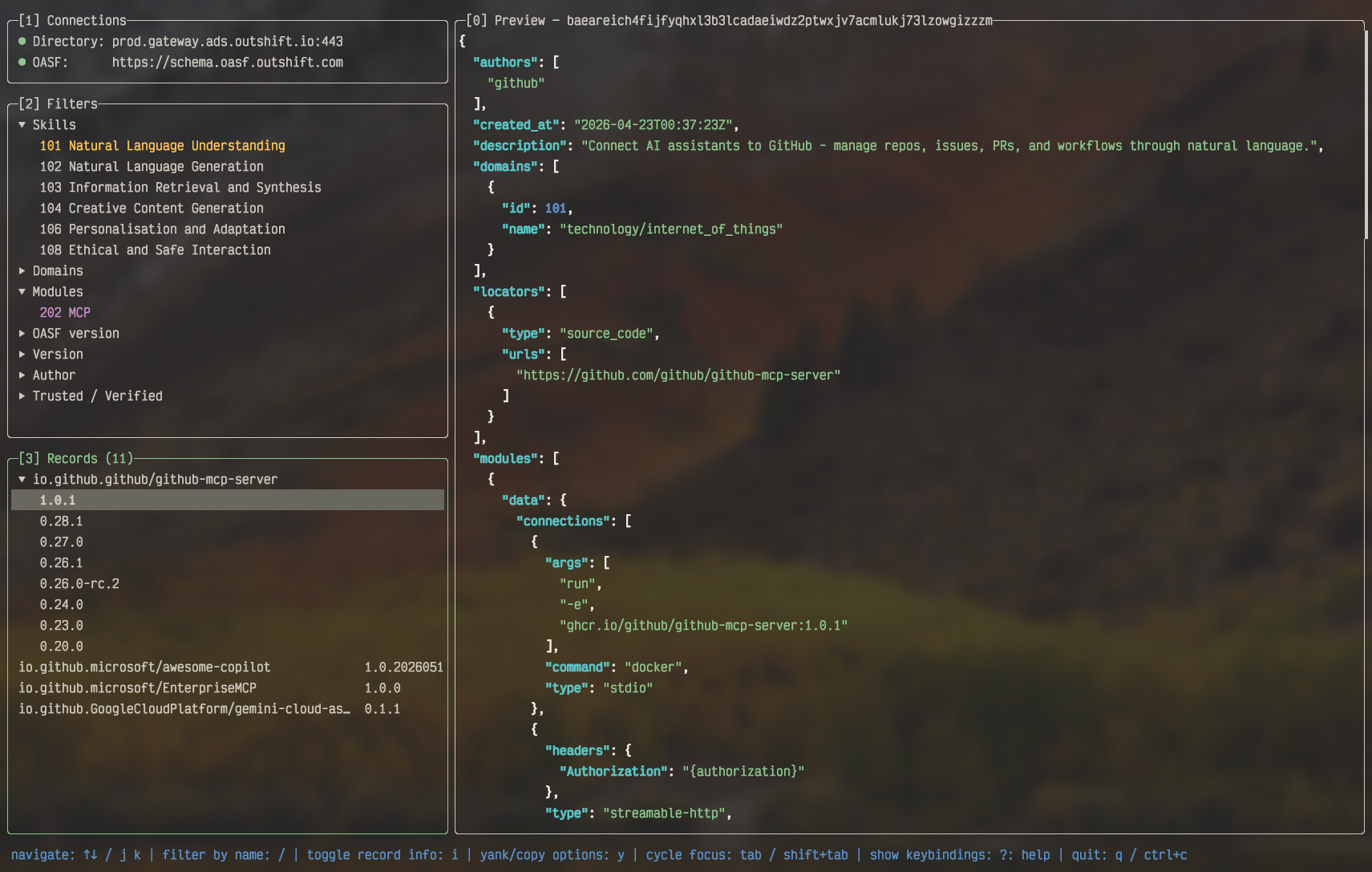
The interface is keyboard-driven.
Panels are cycled with tab, items are navigated with arrow keys (Vim-style j/k and h/l are also supported),
and details are expanded with enter or i.
Mouse clicks are supported as well for panel selection and item navigation.
The full set of available keybindings is accessible at any time by pressing ?.
No prior knowledge of dirctl commands is required.
Connections Panel
The top-left panel displays the live health status of the Directory and OASF endpoints.
Pressing c (or enter) on either row opens a selection popup listing all servers of that type defined in the
configuration file.
The same popup also offers a “Custom…” option for entering a new address directly, without modifying any
configuration.
Connection details are viewable with i.
For servers that require authentication, lazydir supports OIDC device-flow login, displaying the authorization URL and
code inline within the TUI.
Filters Panel
The middle-left panel lists collapsible filter categories:
Skills, Domains, Modules, OASF version, Version, Author, and Trusted/Verified.
Toggling any option with enter or space updates the records panel instantly.
Most filters are applied client-side from a local cache, so the response is immediate — only the Trusted/Verified filter
requires a server round-trip.
A search across all categories is available with /, and pressing i on any skill, domain or module opens the OASF
class hierarchy and its description.
Records Panel
The bottom-left panel presents the filtered list of records.
Records with multiple versions are grouped under collapsible headers.
A live name filter is available with /, a record info popup (showing CID, annotations, schema version, and created-at
timestamp) can be opened with i, and the CID or full JSON can be copied to the clipboard with y.
Preview Panel
The right-hand panel renders the selected record’s JSON with syntax highlighting via Chroma. When focused, the content is fully scrollable.
Configuration and Theming
lazydir reads an optional configuration file from ~/.config/lazydir/config.yml.
The recommended approach for working with multiple directory nodes is to list the frequently used servers in this file.
All defined servers appear in the in-app server selection popup, with the first entry used as the default connection.
Environment variable overrides (DIRECTORY_CLIENT_SERVER_ADDRESS, OASF_SERVER_ADDRESS) are also supported.
The configuration file additionally supports color theme customization (10 abstract color slots accepting named colors, 256-color indices, and hex true-color values), GUI tuning parameters (scroll step, panel split ratio, input debounce delay, popup dimming), and stream batch sizing for record loading.
server:
  directoryServers:
    - address: "localhost:8888"
    - address: "prod.gateway.ads.outshift.io:443"
      oidcIssuer: "https://auth.example.com"
      oidcClientID: "lazydir"
  oasfServers:
    - "https://schema.oasf.outshift.com"

gui:
  theme:
    activeBorderColor: "green"
    selectedRowBgColor: "8"
  splitRatio: 0.33
Getting Started
A running Directory server is required. The quickest way to start one locally is:
dirctl daemon start
Install lazydir via Homebrew or Go:
# Homebrew
brew tap agntcy/lazydir https://github.com/agntcy/lazydir
brew install lazydir

# Or via Go
go install github.com/agntcy/lazydir@latest
Then launch:
lazydir
The TUI connects to the configured directory, streams in the available records, and is ready for browsing. Pre-built binaries for Linux, macOS, and Windows (amd64/arm64) are also available on the GitHub Releases page.
What’s Next
The first release covers read-only browsing. Upcoming work is focused on CRUD operations for managing records directly from the TUI, searching across the network to discover records announced by remote nodes, and copy-pasting records between directory nodes that are not in a federation. Some of these ideas already come from early user feedback, which has been valuable in shaping the roadmap. If you have suggestions or feature requests, please open an issue on the GitHub project — contributions and ideas are welcome.
References
- lazydir on GitHub
- Agent Directory
- Directory Documentation
- Directory MCP Server
- OASF (Open Agentic Schema Framework)
Have questions about lazydir? Join our Slack community or check out our GitHub.